I’ll be honest—when I first opened the map in Forza Horizon 5, I thought I was looking at digital confetti. Races, danger signs, drift zones, barn finds, XP boards, player homes, seasonal championships... it felt like the game had thrown every possible marker at me at once. And here’s the annoying part: those icons don’t disappear after you finish them. So if you’re trying to find one specific thing, like the last few bonus boards or a particular event, you can end up zooming in and panning around for way too long. Sound familiar?
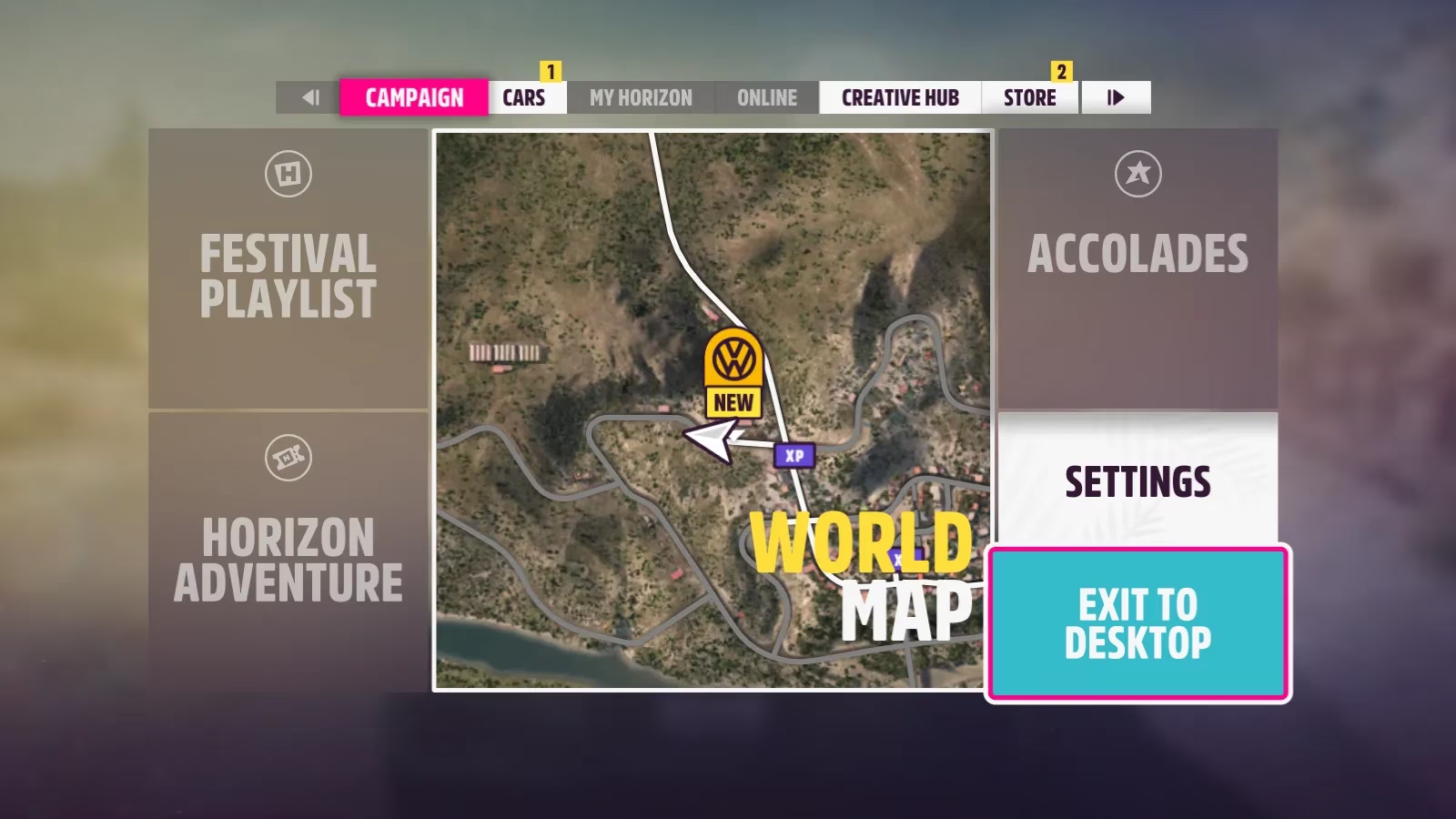
If you have been overwhelmed by the map, I get it. Even in 2026, with all the updates and new seasonal content, the base map remains just as busy. But there is good news: the map filter system is incredibly easy to use, and once you start using it, the whole navigation experience changes for the better.
Why the default map feels so cluttered
The default map in Forza Horizon 5 is useful because it shows you where everything is. But that’s also its biggest problem. Races, PR stunts, collectibles, player homes, festival sites, story missions, and fast travel boards all compete for your attention. Since completed icons don’t go away, the map can look almost identical after 50 hours as it did after 5 hours.
Can you just zoom in and search? Sure. But why would you want to do that every single time? Filtering gives you control over exactly what appears on the map, and it only takes a few seconds.
How to filter map icons step by step
Before you can use filters, you need to finish the opening tutorial races and unlock the full world map. After that, here’s all you have to do:
-
Open the map.
-
Look for the Filters menu option.
-
Select it to bring up the icon list.
-
Check or uncheck the categories you want to see.
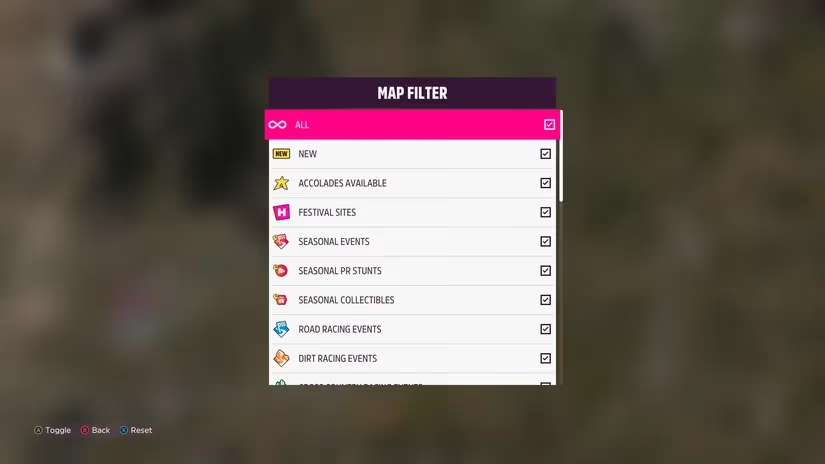
There’s also a top checkbox that controls everything at once. If you uncheck it, all icons disappear from the map. From there, you can manually re-enable only the specific markers that matter to you. This is the option I use most often because it turns a noisy map into a clean, focused to-do list.
Which filters do I actually use?
Different goals call for different filters. Here are a few examples from my own time in Mexico:
-
🏁 Races and events: I enable these when I want to complete a new seasonal championship or clean up unfinished road, dirt, cross-country, and street races.
-
🎯 PR stunts: Danger signs, speed traps, drift zones, and trailblazers get toggled when I’m hunting for three-star scores.
-
🚗 Car-related objectives: Barn finds and car mastery targets are easier to chase when the map isn’t covered in everything else.
-
🪧 Collectibles: XP boards and fast travel boards are simple to spot when I hide the rest of the noise. This is perfect for the final few boards you may have missed.
-
🏠 Player houses: I only turn these on when I’m planning fast travel or shopping for a new property.
Because filters can be changed at any time, you never have to worry about losing markers permanently. Hide everything, find what you need, and then turn it all back on when you want the full picture again. It’s one of those small quality-of-life features that quietly improves the whole game.
A quick fast travel bonus tip
Once your map is filtered and clean, you might also want to make traveling less painful. Forza Horizon 5 has a fast travel system, but it becomes much more useful after you buy the right player house and smash fast travel boards to reduce the cost. I use filters to reveal only those boards, knock them out quickly, and then switch back to whatever activity I was doing before.
Should you filter the map all the time?
Not necessarily. When I’m just cruising around with no specific goal, I often turn all icons back on. It can be fun to stumble into a random event or drift zone. But when I have a clear objective—whether it’s finishing a story mission, unlocking a car, or clearing a seasonal playlist—I always filter the map first.
So the next time you open that map and feel overwhelmed by the icon explosion, don’t just sigh and zoom in for the hundredth time. Open the filters menu, hide everything, and turn on only what you actually need. Your eyes—and your route planning—will thank you.